
Sending USDT from Ledger to a crypto exchanger is different from receiving coins on your device or using Ledger Wallet’s built-in Swap. The live MarketExchange order gives you the asset, network, deposit address, amount, and any required tag. Match those details in Ledger Wallet, verify the final transaction on the Ledger Secure Screen, sign once, and keep the TxID.
Summary: Use the live MarketExchange order as the source for the deposit asset, network, address, amount, and memo or destination tag. In Ledger Wallet, choose Send from the account on that same network. Compare the complete address, amount, fee, and tag on the device before confirming. For a Fixed order, send one exact transaction within the lock shown on the Platform and save its TxID.
This guide starts after a MarketExchange order has produced a deposit address. It covers sending from a Ledger signer to that order–not receiving USDT on Ledger and not using Ledger Wallet’s in-app Swap. If you have not created an order, start with the MarketExchange swap widget.
How to verify the swap deposit asset and network
Keep the live order open and check these details before opening Ledger Wallet:
| Order detail | What to match |
|---|---|
| Asset | The exact ticker, such as USDT–not a similar token. |
| Network | The same network and corresponding Ledger account. |
| Deposit | This order’s address, not an address from history or a previous order. |
| Memo or tag | Only if this order displays one; copy it exactly. |
| Amount | The exact amount shown by the order. |
| Rate and lock | Follow the order type and lock information shown on the Platform. |
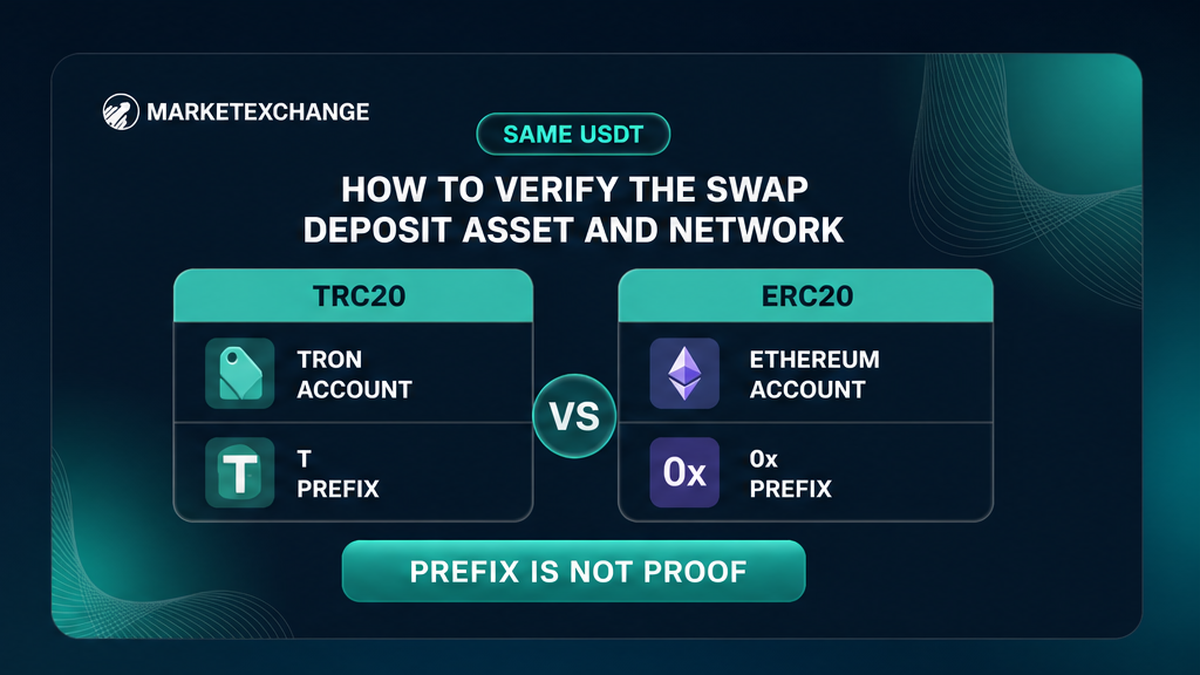
USDT on Ethereum and USDT on TRON share a ticker but use different protocols and Ledger accounts. ERC-20 means the Ethereum account and app; TRC-20 means the Tron account and app. A BEP-20 order uses the Binance Smart Chain account. An address beginning with 0x or T is only a warning signal, not proof of the correct network.
Copy the deposit address from the live order. Do not use a saved exchange address, wallet history, chat, or a search result. If the order shows a Memo, Destination Tag, or Payment ID, add only that value. Do not insert an arbitrary XRP tag such as 0000 or 1111: examples for receiving on your personal Ledger address are not templates for an exchanger deposit.
A wrong-chain transfer may require recovery only if technically possible and may involve extra costs. For copied-address risks, see the crypto address poisoning checklist.
How to select the matching asset and network in Ledger Wallet
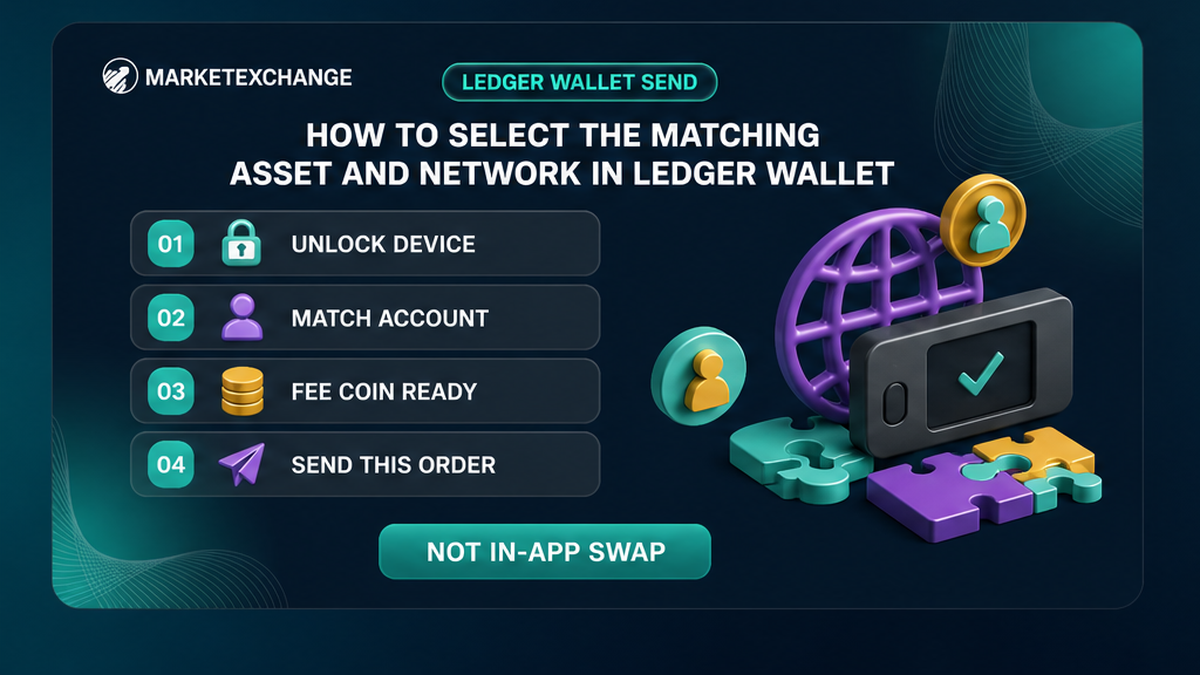
Open Ledger Wallet, formerly Ledger Live, only from the official Ledger website. Choose Send, not the in-app Swap function, and select the account holding the order’s asset on the order’s network. Ledger’s Send flow uses the recipient address, amount, and network fee, then requires the relevant app and connected device before confirmation or rejection.
- Connect the Ledger device and unlock it with its PIN.
- Select the account matching both the order’s asset and network.
- For ERC-20 USDT, use the Ethereum account and app. ETH must be available on that parent account for gas; USDT cannot pay the EVM fee.
- For TRC-20 USDT, use the Tron account and app. A new Tron account needs at least 0.1 TRX to activate before a TRC-20 balance is visible.
- For BEP-20, use the Binance Smart Chain account and keep BNB available for the fee.
- Choose Send, paste this order’s deposit address, enter the exact amount, and add the tag only if the order shows one.
- Check the fee balance before continuing. TRC-20 transfers use energy and bandwidth and may require TRX.
Ledger warns that insufficient Tron energy can produce FAILED – OUT OF ENERGY; its guidance includes keeping at least 100 TRX available. This is a network-resource recommendation, not a MarketExchange tariff. For EVM networks, an automatic fee estimate does not guarantee success if the account lacks enough native coin.
How to verify the full address and tag on the device
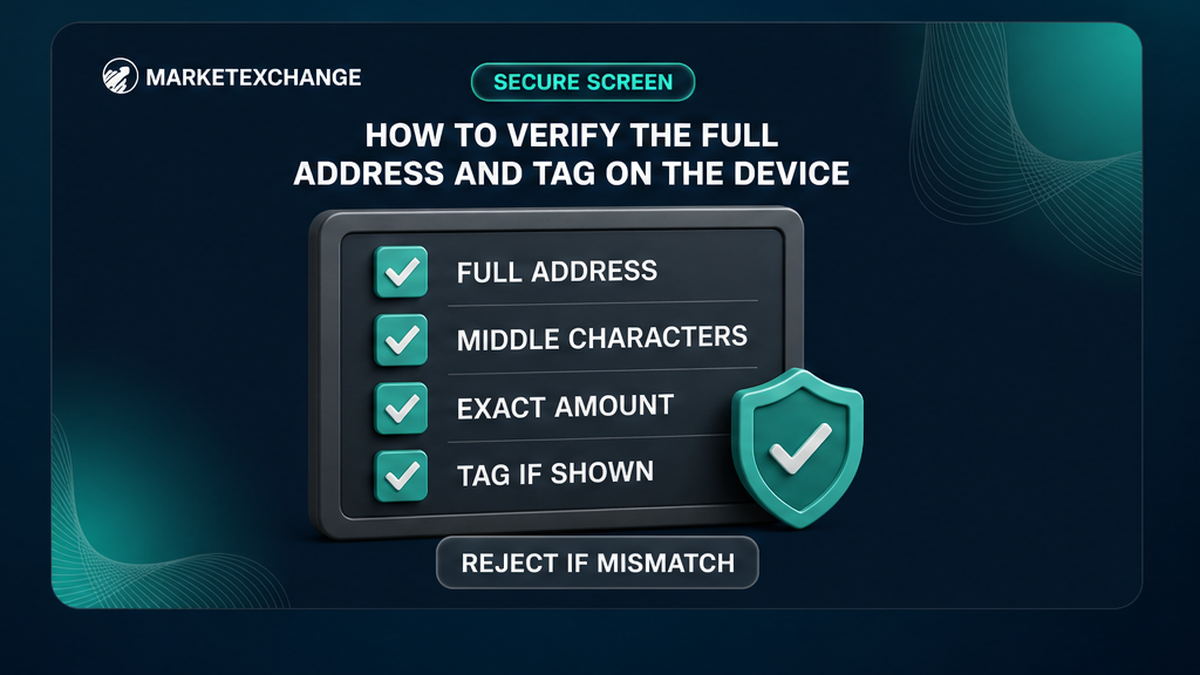
The Ledger Secure Screen is the final source of truth. Compare the recipient address, amount, fee, network context where shown, and required memo or destination tag with the live order before approving. Malware can preserve the beginning and end of an address while changing its middle.
- Place the live order beside the device or use a trusted second screen.
- Scroll through the complete address on the device and compare it with the order, including the middle characters.
- Compare the exact amount. A small test is not automatically safer when the order requires one exact payment.
- Check the fee and confirm that the account retains the required native asset. For XRP, leave enough XRP for the network reserve.
- If the order shows a tag, verify that same tag in the transaction details. XRP destination tags accept digits only.
- Reject the transaction if any address character, amount, network, tag, or fee is unexpected.
If Ledger Wallet reports Mismatch between the copied address and the one in the clipboard, reject the transaction and stop. Do not approve because the prefix and suffix look familiar. A transfer to the wrong address is generally irreversible.
How to send once and keep the TxID
Immediately before signing, recheck the order status, rate type, exact amount, deposit address, network, and lock. For a Fixed order, make one exact transfer within the lock shown on the Platform.
- Confirm the parent account has the needed fee asset: ETH for Ethereum, BNB for Binance Smart Chain, or TRX for Tron resources and fees.
- Approve only after the Secure Screen matches the order.
- Wait for Ledger Wallet to show the operation after broadcast.
- Open the operation, copy the transaction hash or TxID, and use View in explorer for that same network if needed.
- Keep the order reference, TxID, asset, network, amount, and timestamp together.
- Do not send a second transaction because the order page has not updated immediately.
Ledger’s general guidance may suggest testing with a small amount, but that advice does not override the Fixed-order workflow. A late payment, wrong amount, wrong network, or multiple transactions can lead to recalculation, refund minus applicable costs, or rejection where processing is technically impossible.
The TxID is the network reference, not proof that the swap is complete. The receiving system still needs the correct asset, network, amount, and tag, and the network may need confirmations. Use the official TxID checking guide if the payment appears stuck.
The deposit address is where you pay MarketExchange; the recipient address is where the exchanged asset is sent. If a transaction reached the correct address but the order remains unresolved, use official MarketExchange support. Do not follow a replacement address supplied by an unsolicited account.
Checklist: stop before entering a seed phrase
Use the physical Ledger device for approval and download Ledger Wallet only from Ledger’s official website. Genuine support does not need your 24-word recovery phrase, PIN, or private keys.
- Never enter the recovery phrase into a website, desktop app, browser pop-up, form, chat, Telegram DM, or “Ledger Live” clone.
- The 24 words belong on the physical device only during setup or restore.
- Stop if a pop-up says the Ledger must be “synchronized” by entering the seed.
- Stop if a person offers a new deposit address or requests remote access.
- Use the official MarketExchange support page or its public MarketExchange official Telegram; do not treat an unsolicited message as verified support.
Workflow: MarketExchange order: ticker + network + deposit address + tag only if shown + exact amount → Ledger Wallet Send → matching account and network → native fee asset → Secure Screen match → one transaction → operation history → TxID.
Before signing, ask: Am I using Send rather than Ledger Wallet Swap? Is the ticker exact? Is the network the same? Did the device show the complete deposit address? Is the amount exact? Did I copy only the tag shown by this order? Is the lock still active? If any answer is uncertain, do not sign.
Frequently asked questions
Does Ledger support every network used by an instant swap?
No. Support depends on the asset and network. Check the MarketExchange order first, then confirm Ledger Wallet supports that exact combination. Do not substitute ERC-20, TRC-20, or BEP-20 because the ticker looks the same.
How do I send USDT from Ledger to a crypto exchanger?
Open the live order, note its USDT network and deposit address, then choose Send from the matching Ledger account. Paste the address, enter the exact amount, add the tag only if shown, compare the full details on the Secure Screen, confirm once, and save the TxID.
Where do I see the TxID in Ledger Wallet?
Open the account’s operation history and select the send operation after broadcast. Copy the transaction hash or TxID and use View in explorer for the same network. Do not copy an address from history for a new payment.
Should I use a browser dApp to swap from Ledger?
Not for this checklist. A browser dApp or Ledger Wallet’s in-app Swap is separate from paying a MarketExchange deposit. Use normal Send to the live order’s deposit address and approve only matching details on the device.
What if Ledger shows a different address from the MarketExchange order?
Reject the transaction immediately. Do not approve because the first and last characters look correct. Check the computer and official applications, reopen the order from the trusted MarketExchange site, and contact official support if the discrepancy remains.
What if I sent USDT on the wrong network?
Do not send a second payment. Save the TxID, asset, network, amount, and order reference, then contact the official receiving service through its published support channel. Recovery may be impossible or may involve extra costs.
Disclaimer: The material in this article is not financial or investment advice. Everything stated here reflects the author's personal view and should not be treated as a recommendation to trade or invest. We make no warranties regarding the accuracy, reliability or completeness of the information presented. Cryptocurrency markets are highly volatile and can move unpredictably. Before committing any funds, every investor, trader or crypto user should study several independent sources and check the regulations that apply in their own jurisdiction.