
A wallet says “sent”, but the recipient still sees nothing. The fastest way to replace guesswork with evidence is to find the full crypto transaction ID, open it on the explorer for the exact network, and compare the status, recipient, asset, and amount. Follow this check from the original wallet or exchange record to the correct next action, without sending a duplicate or exposing wallet secrets.
Summary: Find the exact transfer in your wallet activity or exchange withdrawal history, then copy the full TxID, transaction hash, or signature. Open it on a block explorer for the same blockchain network and verify the status, recipient, asset, and amount. Keep the platform Order ID as separate evidence, and do not resend while the first transfer is pending or already confirmed.
A TxID is the public receipt number for one blockchain transfer. It may also be called a transaction hash, Tx Hash, or, on Solana, a signature. A block explorer is the public search page for a network. The workflow is: identify the transfer → copy its full TxID → match the network → inspect the record → act on the result.
Identify the transfer and choose the right identifier
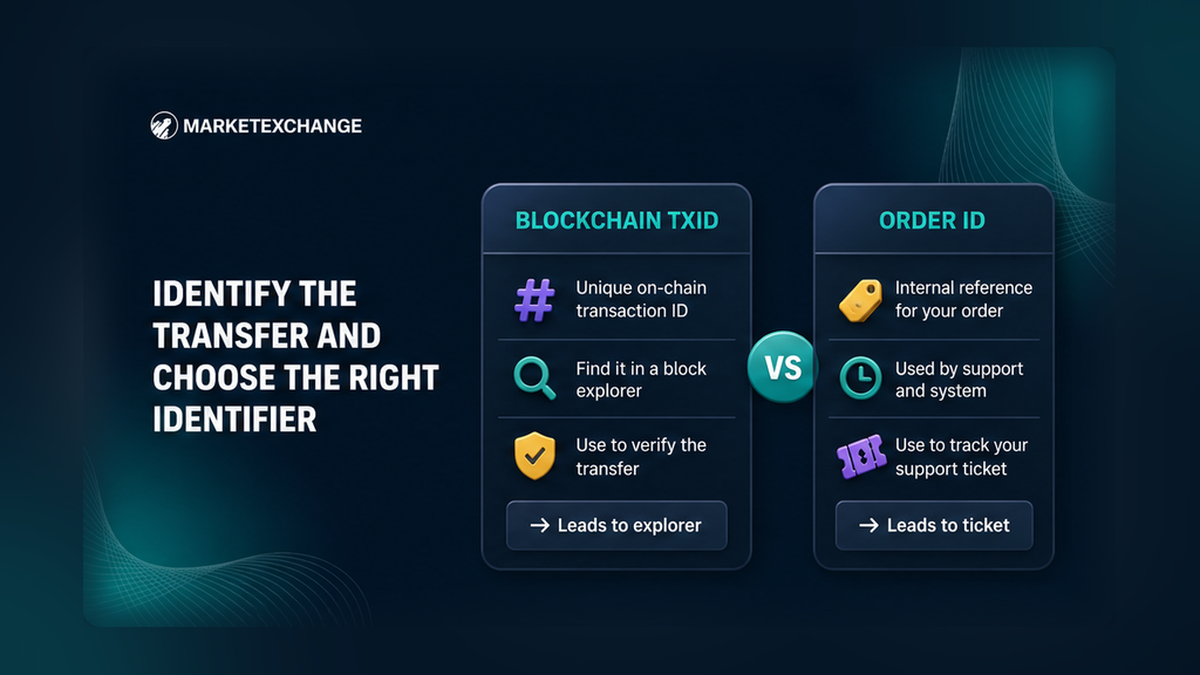
Open wallet activity for a send, or funding history on an exchange. Match the direction, asset, amount, and time before copying an ID. An Order ID is the platform’s service ticket; a TxID is the public delivery receipt. Save both, but do not search an Order ID on an explorer.
| Item | Identifies | Explorer lookup? | Main use |
|---|---|---|---|
| TxID, transaction hash, or signature | One transaction on one network | Yes, on that network | Check the public record |
| Order ID | A platform order | No | Order status and support |
| Withdrawal ID | A withdrawal request | Usually no | Withdrawal status and support |
Look for “TxID”, “Transaction Hash”, “Hash”, “Signature”, or “View on block explorer”. If only an Order, Withdrawal, or Internal ID appears, check whether the transfer was broadcast, meaning submitted to the network. An internal transfer or an unbroadcast withdrawal may have no public TxID, so use the platform reference with its support.
Find and copy the complete TxID without typing it
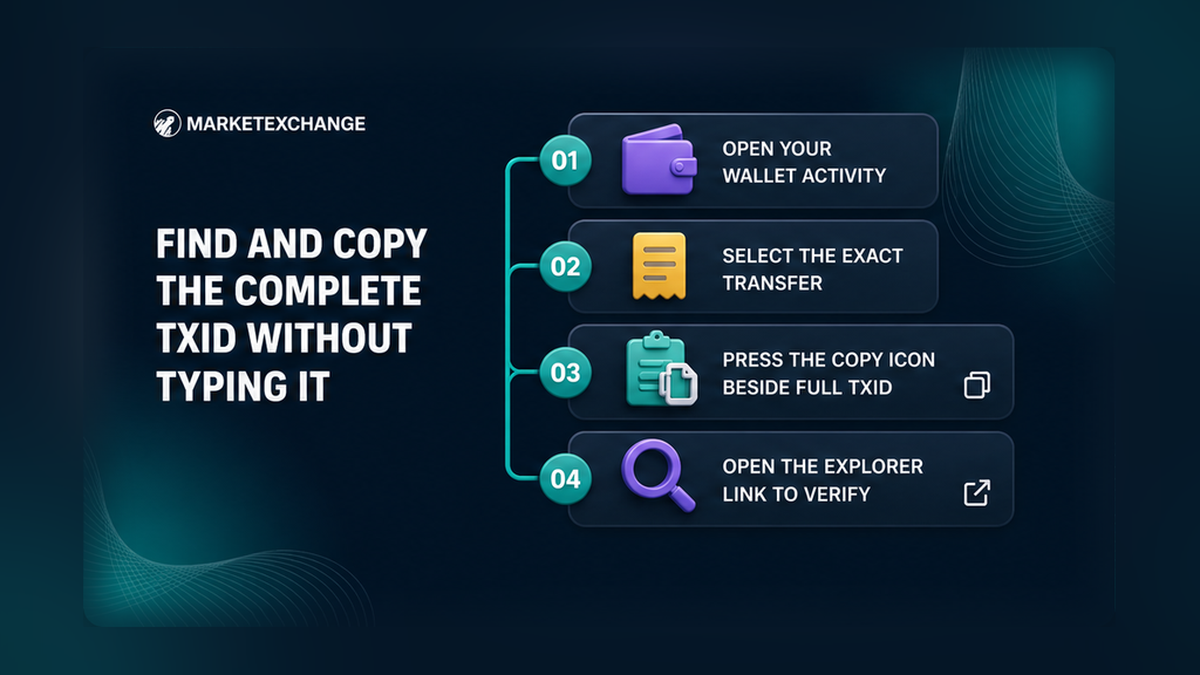
The usual route is history → exact transaction → details → TxID or explorer link. In an exchange, use deposit or withdrawal history, not the trade list.
- Open the wallet activity or exchange funding history.
- Select the record matching direction, asset, amount, and time.
- Confirm that the record is an on-chain send, deposit, or withdrawal.
- Find TxID, Transaction Hash, Hash, Signature, or View on block explorer.
- Use the copy button or open the explorer link.
- Save the full value without shortening its beginning or end.
- Save the separate Order ID or Withdrawal ID for platform support.
Do not retype or shorten the ID. One changed character can produce no result or an unrelated record. Length and a “0x” prefix are not universal tests. Prefer “View on block explorer”, then confirm that the network name matches the original record.
Match the asset to the exact network and explorer
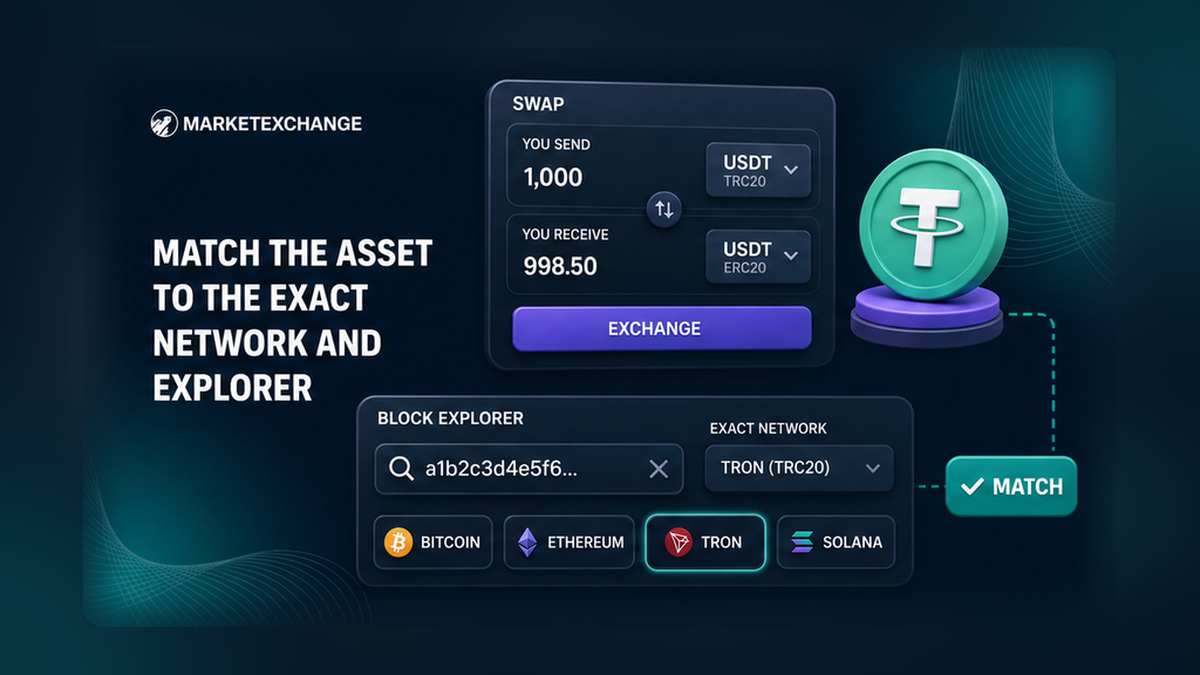
The ticker is not enough. USDT can travel on TRON, Ethereum, and other networks. The asset is the parcel; the network is the delivery road. Read the network from the withdrawal or wallet details, then use the explorer recommended by that wallet or network.
- Bitcoin transfer: use a Bitcoin block explorer.
- Ethereum or ERC-20 transfer: use an Ethereum explorer.
- TRON or TRC-20 transfer: use TRONSCAN.
- Solana transfer: search the signature in Solana Explorer.
Check the explorer domain. It needs only public data such as a TxID, never a seed phrase, private key, password, or remote access. If it says “not found”, copy the full ID again, verify the network and broadcast state, and ask whether the transfer was internal. Do not try chains at random.
If you know the sending or receiving wallet address but not the TxID, search that public address on the correct explorer and filter by time, asset, and amount. An address page can contain many transfers, so open the matching record and copy its TxID before using it as proof.
Verify status, recipient, asset, and amount on the explorer
Read the result as a receipt, not as a green badge. Status shows what the network did; the other fields show whether this is the transfer you intended.
- Read the status: pending, confirmed, successful, finalized, failed, or reverted.
- Check the block or slot and the recorded time.
- Compare the sender and recipient with the original receipt.
- Confirm the asset or token transfer entry, not only the network coin.
- Compare the transferred amount with the wallet or order record.
- Read the network fee separately from the amount delivered.
- Check the receiving service’s required confirmation level.
A confirmation means the transaction was included in a block and accepted by the network. There is no universal number that completes every deposit. Follow the receiving service’s rule. Solana may instead show “processed”, “confirmed”, or “finalized” to describe how settled the record is.
For a token, inspect the token-transfer entry too. A successful action can still contain the wrong recipient, token, network, or amount. Compare the full recipient address and transfer amount with the original receipt.
Verification rule: Correct TxID + correct network + successful status + matching recipient + matching asset and amount = evidence of the on-chain transfer shown. It does not by itself prove that a platform has finished its internal account credit.
Choose the next action from the explorer result
Act on the state you can prove. Do not send again because a balance has not updated. A duplicate creates another transaction; it does not repair the first one.
| Explorer result | What it establishes | What to do next |
|---|---|---|
| Pending or unconfirmed | Broadcast is visible but not settled enough | Do not resend; monitor it and follow wallet guidance |
| Failed or reverted | The attempt did not complete | Review the wallet record before any retry |
| Not found | No matching public record is visible | Recheck ID, network, broadcast, and internal status |
| Confirmed and details match | The transfer occurred as shown | Wait for credit processing and save evidence |
| Confirmed but details differ | The record does not match the intent | Stop and contact official support with evidence |
A failed or reverted record does not promise an automatic refund of every amount or fee. Follow the wallet’s guide for that chain. If the transfer is confirmed and details match but no credit appears, preserve the TxID and ask the receiving service to trace the deposit.
For a MarketExchange order, use the stuck crypto swap checklist to check the deposit, order, and payout separately. Do not open a new order to test it.
Build a support-ready proof pack and protect wallet secrets
Give support evidence it can search: full TxID or explorer URL, asset, network, amount, time, public addresses, platform reference, and status. Copied text is more useful than a cropped screenshot alone.
- Copy the full TxID or transaction signature.
- Save the explorer URL for the matching network.
- Write the exact asset and network as separate fields.
- Add the amount, time, and relevant public addresses.
- Add the platform Order ID or Withdrawal ID.
- Describe whether the issue is pending, missing, failed, or not credited.
Use support opened from the platform’s own site. Never share a seed phrase, private key, password, login code, or remote access. Support does not need them to inspect a public TxID.
For a MarketExchange pre-check, the AML check can use TXID, asset, and exact network. For an order or credit problem, send the labeled Order ID and TxID to official support.
Frequently asked questions
Where do I find a crypto transaction ID?
Open the exact send, deposit, or withdrawal, then copy TxID, Transaction Hash, Hash, or Signature. You can also use “View on block explorer”.
Is a transaction hash the same as a TxID?
Usually, yes. Both identify one on-chain transaction. Solana commonly calls it a signature, so use the explorer for the exact network.
Is an exchange Order ID the same as a TxID?
No. An Order ID identifies the exchange workflow; a TxID identifies the public transfer. Use the Order ID with support and the TxID on the explorer.
Why does my TxID show no results?
Copy the full ID again and match the explorer to the network. Then check whether the transfer was broadcast or moved internally without a public record.
Does “Success” mean an exchange credited my deposit?
No. It confirms the explorer result. Match the recipient, asset, network, and amount, then wait for the receiving service’s credit process.
Can I share a TxID with support?
Yes. Send the full TxID or explorer URL, asset, network, amount, and platform reference through official support. Never send wallet secrets.
Can I track a crypto transfer without a TxID?
Sometimes. Search the public sender or recipient address on the correct network explorer, then match time, asset, and amount. Open the matching transaction and copy its TxID for reliable follow-up.